In release 4.5, we’ve expanded electronic signature capabilities, extended the document acknowledgment business process, added a business event log to the document card, and improved file handling and document copying.
We’ve paid particular attention to companies with multiple legal entities. Directory values and counterparty lists can now be filtered automatically based on the selected legal entity. This release also adds support for the new Kupyna national cryptographic standard and enhances the AI-powered recognition of emails that contain contracts.
The main enhancements are outlined in more detail below.
AI recognition of emails with contracts
What’s new
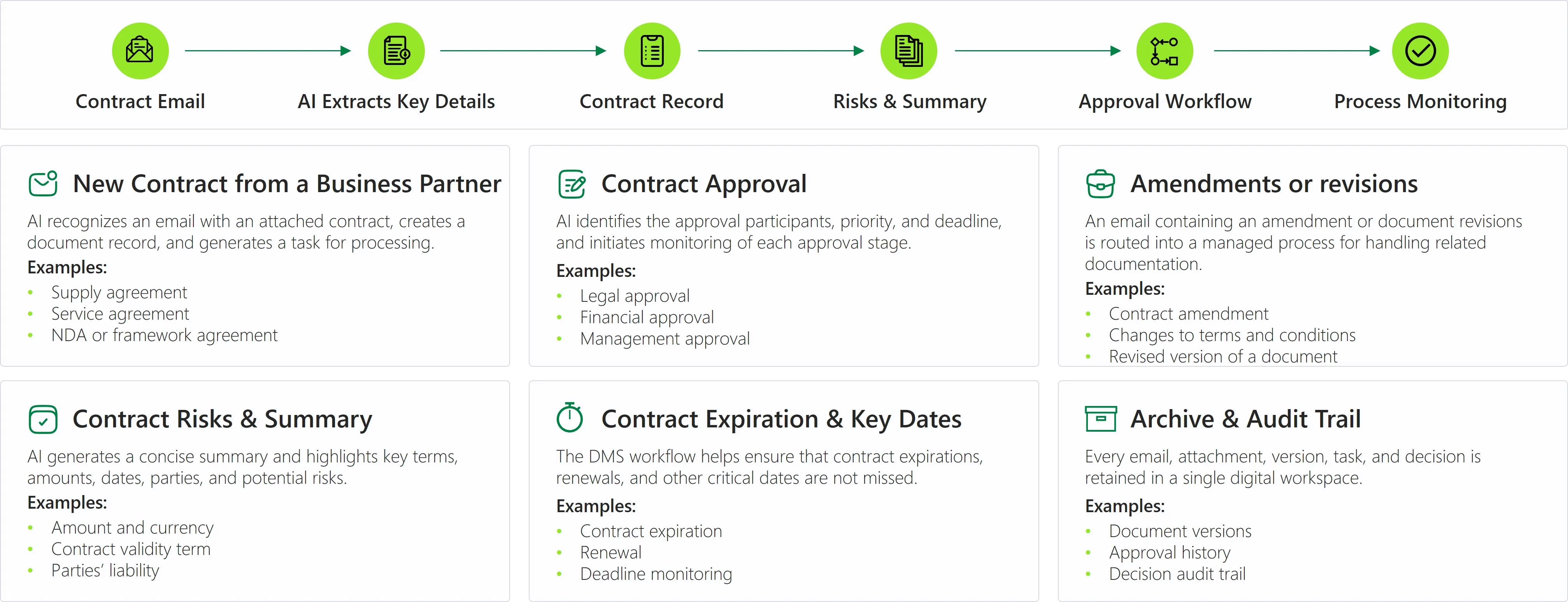
We’ve enhanced how SmartPoint DMS handles documents that arrive by email. In addition to registering emails by category, SmartPoint DMS now uses SMART AI Email Document & Task Assistant to process emails that contain contracts. An email with a contract becomes a managed document process in SmartPoint DMS, from registration through approval to archiving.
How it works
The process includes the following stages:
- Email with a contract. A counterparty sends a contract or supplementary agreement to the corporate mailbox.
- AI extracts details. AI analyzes the email text and attachments and identifies the document type, parties, counterparty, date, amount, currency, validity period, and other key attributes.
- Contract card. SmartPoint DMS creates a document card with the metadata, attached files, and a processing task.
- Approval route. The document follows the standard SmartPoint DMS route, for example, legal approval, financial approval, and approval by a manager.
- Process control. The system records statuses, deadlines, notifications, and the full history of work on the contract.
Typical scenarios include receiving a new contract from a counterparty (supply agreement, services agreement, NDA, or framework agreement); approving a contract; handling a supplementary agreement or a change in terms; tracking validity periods and renewals; archiving contracts and tracing document history.
Benefits
Your company no longer needs to copy data from emails into the system manually. Contracts don’t get lost in individual employees’ mailboxes. Instead, they go straight into a managed process with assigned owners and deadlines. Initial contract analysis takes less time, so legal and finance teams can focus on the key terms. Managers can see which stage a contract is at, who’s working on it, and whether any deadlines have been missed.
Filtering counterparties and directory values by legal entity
What’s new
For companies with multiple legal entities, data is now filtered based on the selected legal entity. This applies to:
- Counterparties: in the document card, in document table filters, and in search.
- Directory values in process templates: document categories, step names, and document statuses.
How it works
After you select a legal entity in the document card, the Counterparty field suggests only the counterparties associated with that legal entity. Filters and search work the same way.
In the Administration Center, when you create an approval process template and select a legal entity, the Document category field shows only the values assigned to that legal entity.
Benefits
Users see only the data that’s relevant to the selected legal entity, which reduces errors when filling in document cards. For a group of companies, this means you can maintain a shared document management system while keeping each legal entity’s directory data clearly separated.
Document acknowledgment business process
What’s new
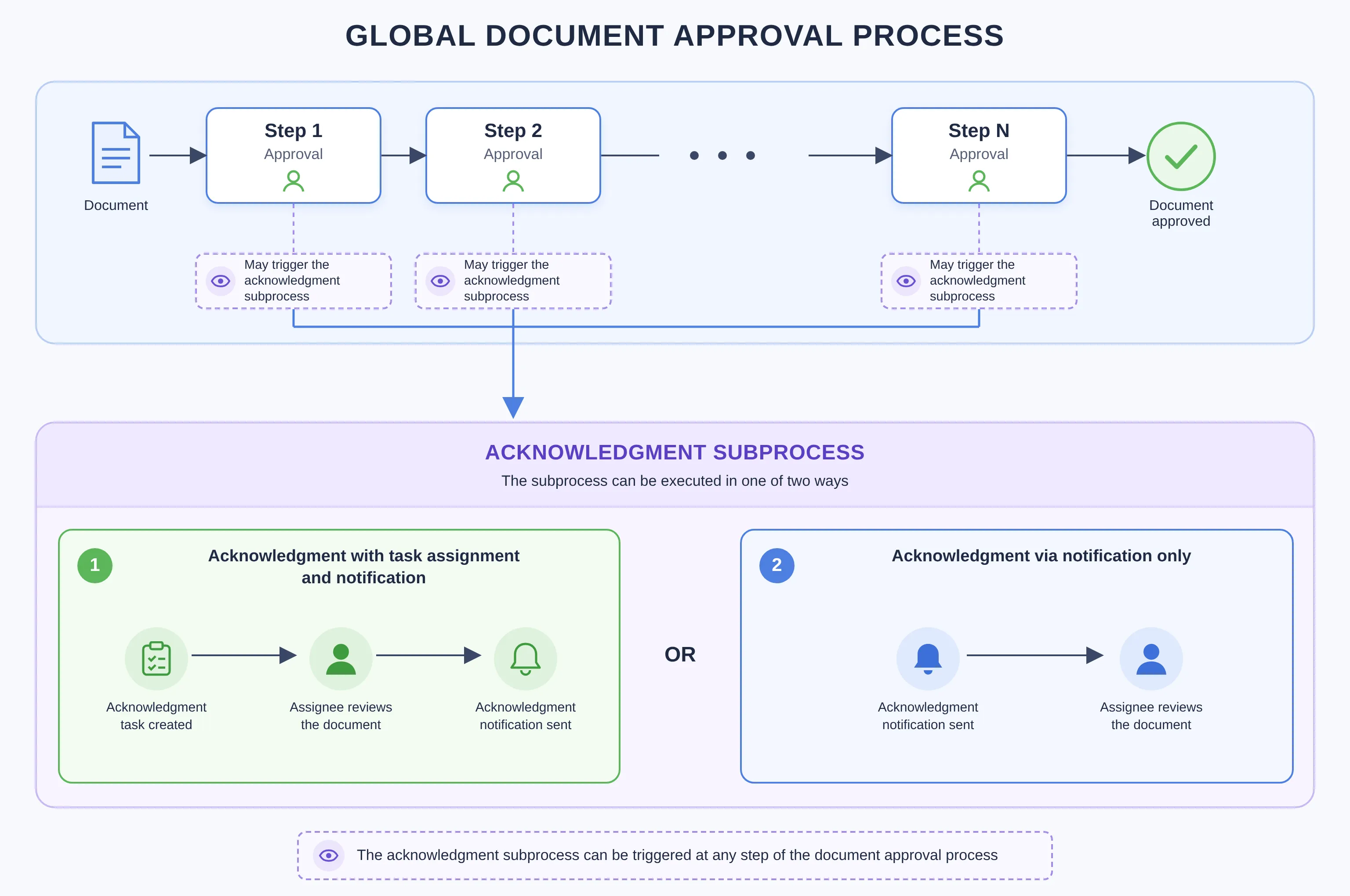
We’ve significantly expanded acknowledgment functionality. You can now start an acknowledgment subprocess at any step of document approval. The subprocess has two modes:
- With an acknowledgment task and a notification.
- With a notification only. This mode doesn’t require a separate task.
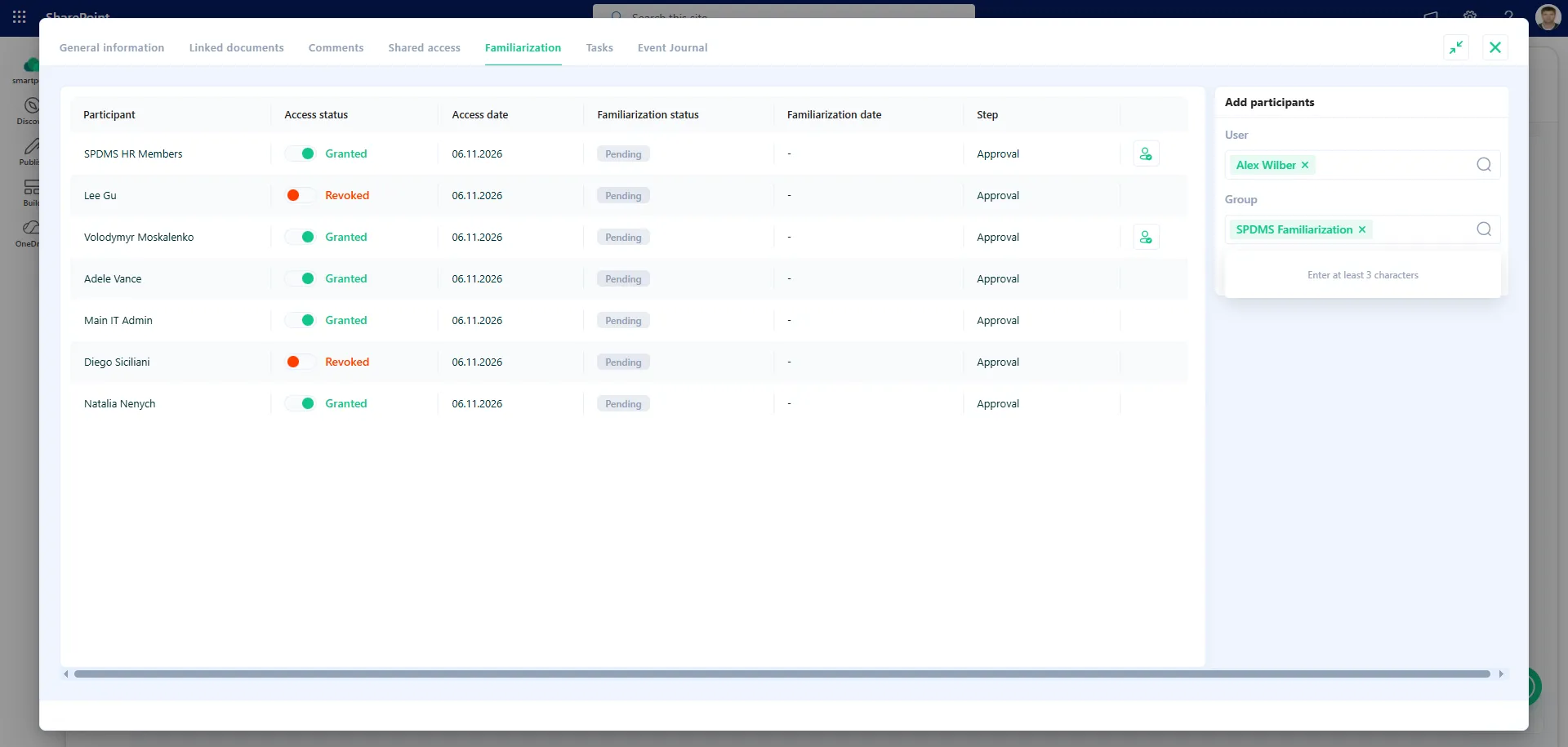
The document card now has a new Acknowledgment tab. In the approval process template, there are new Acknowledgment and Acknowledgment after approval step options.
How it works
In the Administration Center, a business administrator defines the route steps at which acknowledgment is available. The Acknowledgment after approval option lets you send a document for acknowledgment after the approval process is complete but before the document moves to the Completed state.
On the Acknowledgment tab, an approval process participant selects users and/or groups and then selects Send for acknowledgment. The system automatically:
- gives recipients view access to the document card and related files
- sends a “Document acknowledgment” notification in Teams or Outlook
- checks the recipients and reports which ones couldn’t be added and why (for example, because they don’t have access to the module)
- avoids sending duplicate notifications if a user is added both directly and through a group.
Recipients confirm acknowledgment by selecting Acknowledged, either in the notification or in the document card. The acknowledgment table shows the following information: participant, access status, date access was granted, acknowledgment status (Pending, Acknowledged, or Not acknowledged), date of acknowledgment, and process step. If needed, you can revoke access and grant it again. Recipients receive an “Acknowledgment revoked” notification when you revoke access.
After the document moves to the Completed state, all unconfirmed acknowledgments automatically get the Not acknowledged status. The acknowledgment history remains available to view.
Benefits
Your company gets a simple, fast way of bringing important documents (orders, policies, and regulations) to employees’ attention without overloading them with extra tasks. At the same time, you keep full control: you can see who acknowledged a document, when, and at which stage, and who hasn’t. This simplifies audit preparation and makes it easier to demonstrate compliance with internal requirements.
Verifying signatures applied to a document
What’s new
We’ve added a new Verify signature action. It lets you check the validity of an electronic signature directly in the document card: the certificate’s validity period, whether it has been revoked, and whether it’s listed in the ACSK (accredited key certification center) registry.
You can verify both files signed in SmartPoint DMS and files signed outside the system and uploaded to the document card (the original plus the signature file).
How it works
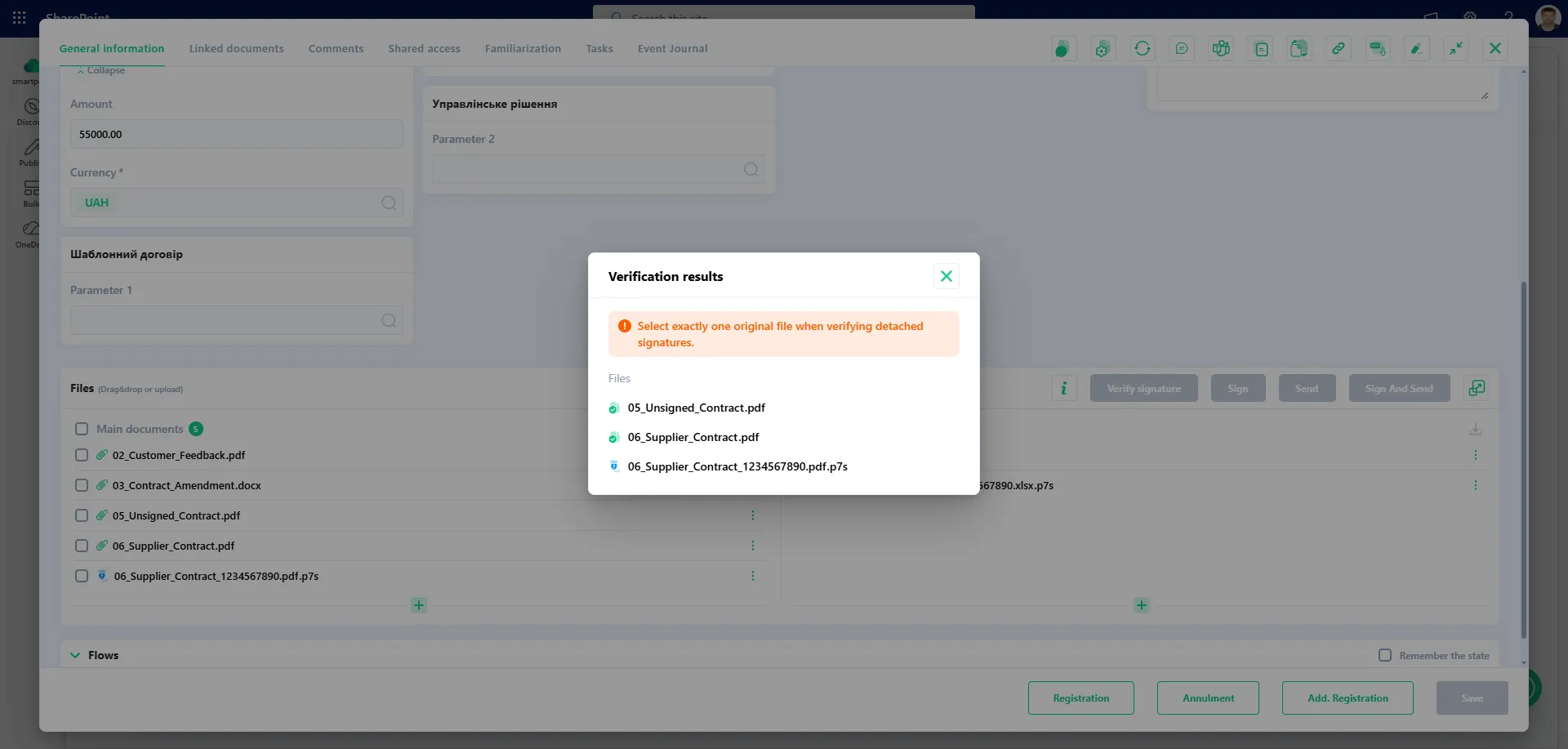
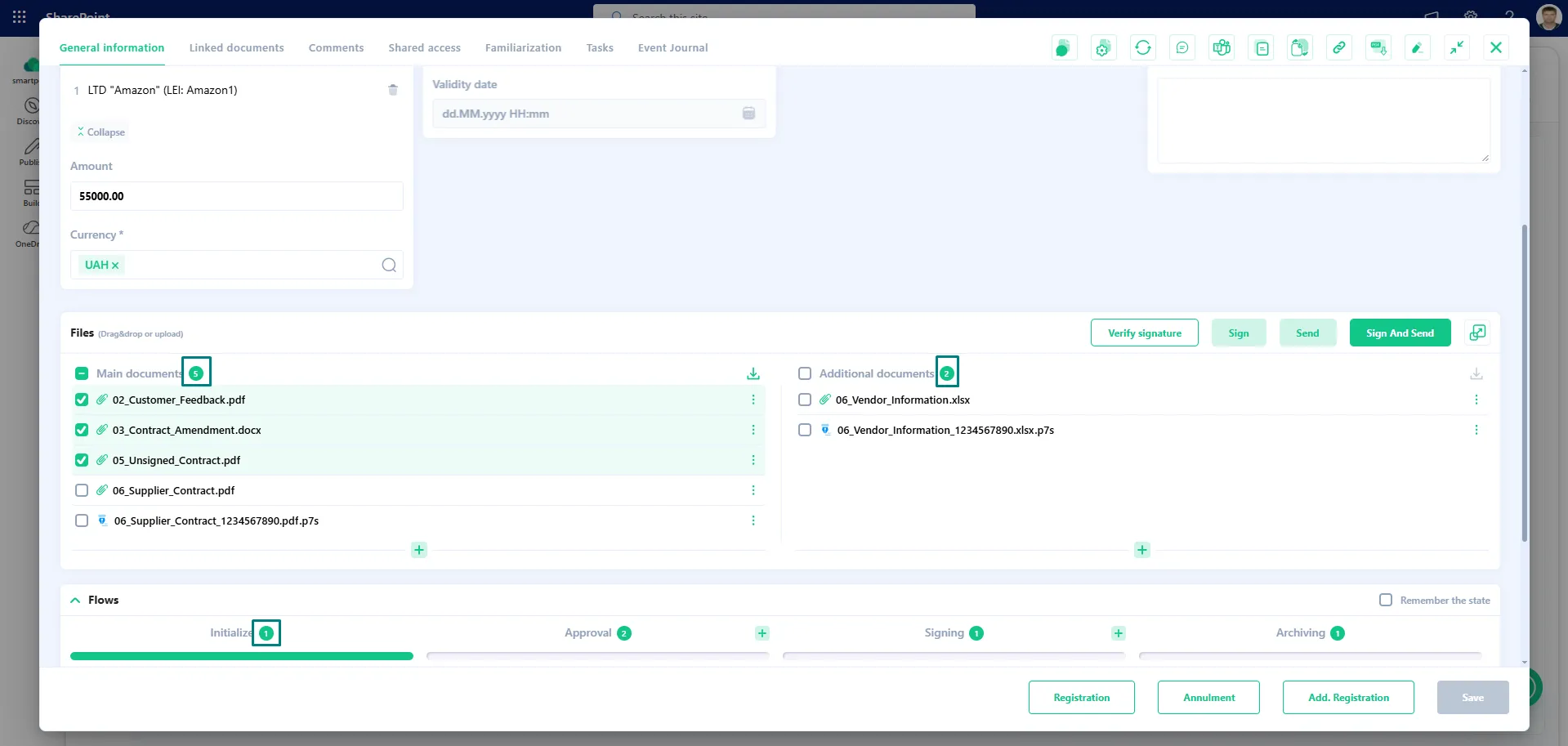
In the Files section, you select the original document and the corresponding signature file, and then select Verify signature. The system determines the signature type on its own and shows the result in the Verification results window. The following scenarios are supported:
- One file with an attached signature
- An original document and a separate signature file
- One original and multiple signature files from different signers
We’ve also updated the logic for selecting files to sign. Files are grouped into the Main documents and Additional documents sections, the final version of the document is selected automatically, and existing signature files (.p7s) are excluded from the selection so they can’t be signed again.
Benefits
Users can quickly confirm the legal validity of signatures received from counterparties without using third-party verification services. This reduces the risk of working with documents signed with invalid or revoked keys and speeds up processing of incoming documents.
Support for the new Kupyna national cryptographic standard
What’s new
SmartPoint DMS supports qualified electronic signatures whose certificates are generated under the new Kupyna national cryptographic standard: the DSTU 4145-2002 algorithm with a hash function that complies with DSTU 7564:2014.
Since August 26, 2026, the State Tax Service’s qualified trust service provider (QTSP) has been issuing qualified public key certificates under this standard.
How it works
For users, the process of signing and verifying signatures in the system doesn’t change. You upload the key, select the certification center, enter the password, and sign the document, either from document cards or in bulk signing mode.
According to the State Tax Service’s clarifications, certificates generated under the previous standard remain valid until they expire. You don’t need to replace a qualified electronic signature early just because of the transition to Kupyna.
Benefits
Companies can use new qualified electronic signatures issued after trust service providers switch to the Kupyna standard without interrupting document flow. This keeps your electronic signing processes compliant with current government requirements and ensures your documents remain legally valid.
Configuring fields whose values are copied to a new document card
What’s new
The system now has a separate directory where a business administrator defines which field values are carried over to a new card when users select Copy with files or Copy without files. As before, you can copy any document card, regardless of its status.
How it works
For each field, the business administrator specifies the modules, the document types, and whether to copy the field. The settings are applied automatically each time a document is copied.
Some fields are always excluded from copying and are handled by the system automatically. These include identifiers, creation and modification metadata, unique numbers, actual completion dates, responsible persons, and so on. Counterparty links and comments aren’t copied either, to avoid duplicating interaction history.
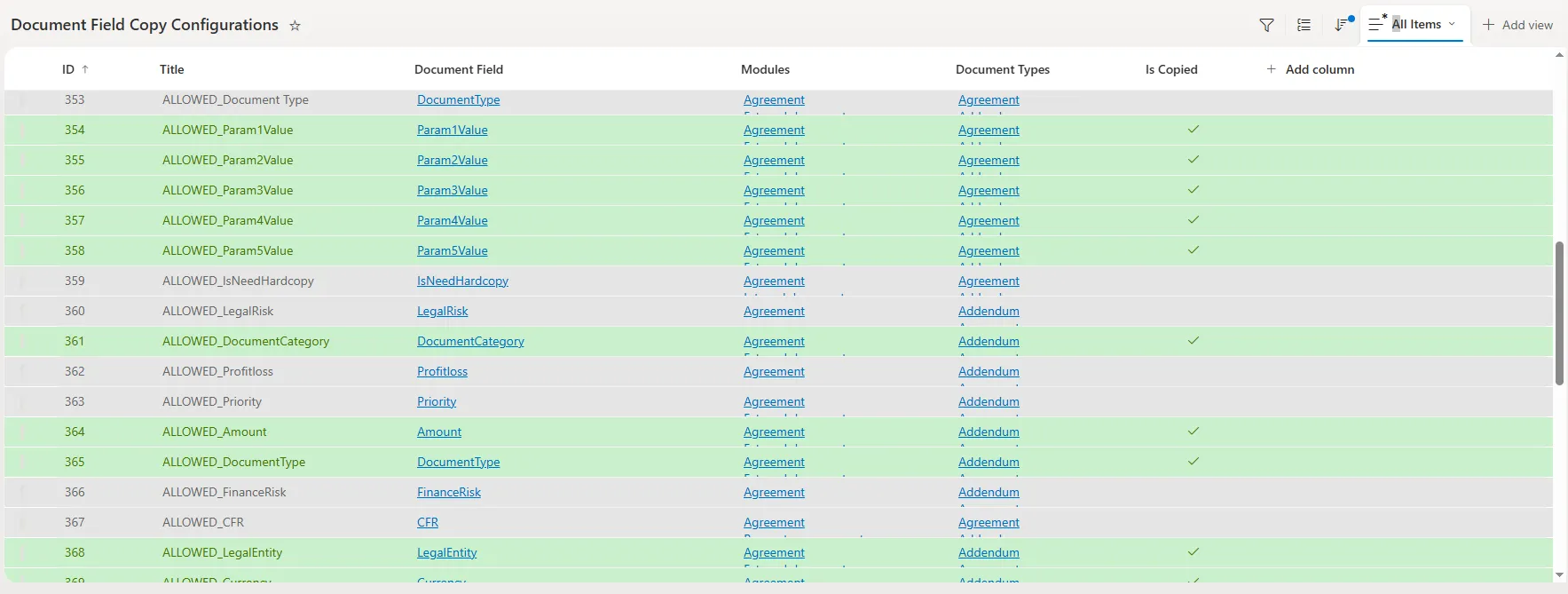
You open an existing card, select Copy document, and choose one of the following options:
- Copy with files: the files and the values of the configured fields are carried over to the new card.
- Copy without files: only the values of the configured fields are carried over.
The new card gets the Author and Document number fields automatically. After you review the data and add any missing information, you can send the document for approval right away or save it as a draft.
Benefits
Your company defines its own document copying rules to match its business processes. This is especially useful for standard documents that you create regularly: users get a prefilled card with up-to-date data rather than randomly carried-over values that they have to correct manually. Creating similar documents (recurring contracts, requests, and orders) takes significantly less time, and the risk of manual data entry errors goes down.
Downloading files from a document card
What’s new
You can now download one or more files attached to a document card to your device. This is available in the Files section of the card, in the Attached files section, and from the document table by using the Attachments button, without opening the card.
How it works
To download a single file, select More options (⋯) > Download. To download several files at once, select the files you need and then select Download selected. If you select multiple files, the system automatically creates a ZIP archive whose name includes the document number and the date and time it was created.
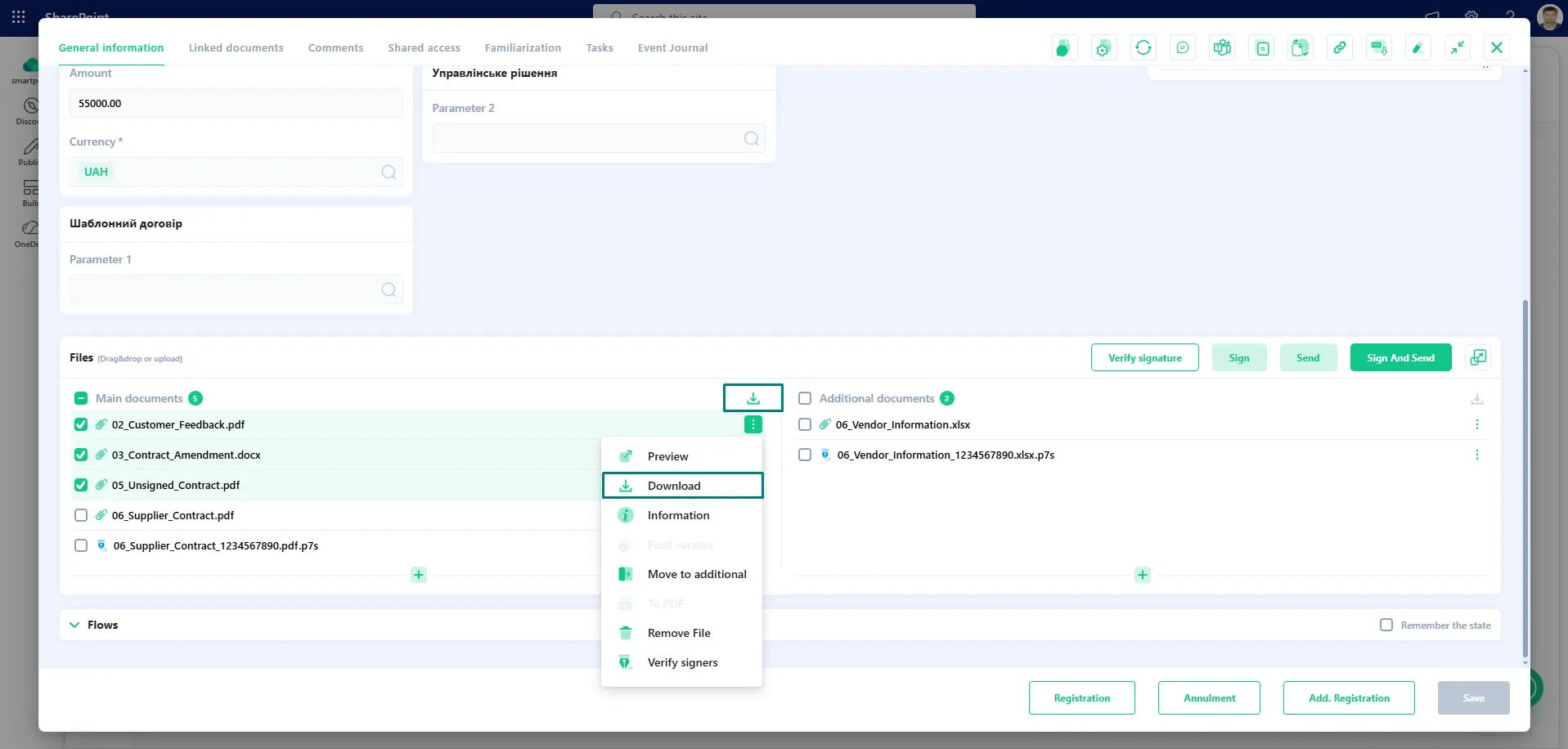
A progress indicator appears during the download. A business administrator can limit the maximum number of files and the total size for a single operation. If the limit is exceeded, the system warns the user.
Benefits
Users can quickly get a complete document package to send to a counterparty or an auditor, or to work with locally, without having to open and download each file separately.
Additional document card features: file counters and approval participant counters
What’s new
The document card now has new visual indicators:
- A file counter in the Main documents and Additional documents sections
- A participant counter next to the name of each step in the Process section
How it works
The number of files appears in the headings of the Files section. The counter updates automatically after you add, delete, or move files, convert them to PDF, create a final version, generate a file from a template, or receive files through integrations.
In the Process section, the number of users added to each step appears next to the step name.
Benefits
Users can see at a glance how complete the document package is and how many people are involved in approval at each stage. This speeds up document review and helps you estimate how many participants still need to complete their tasks.
Business event log
What’s new
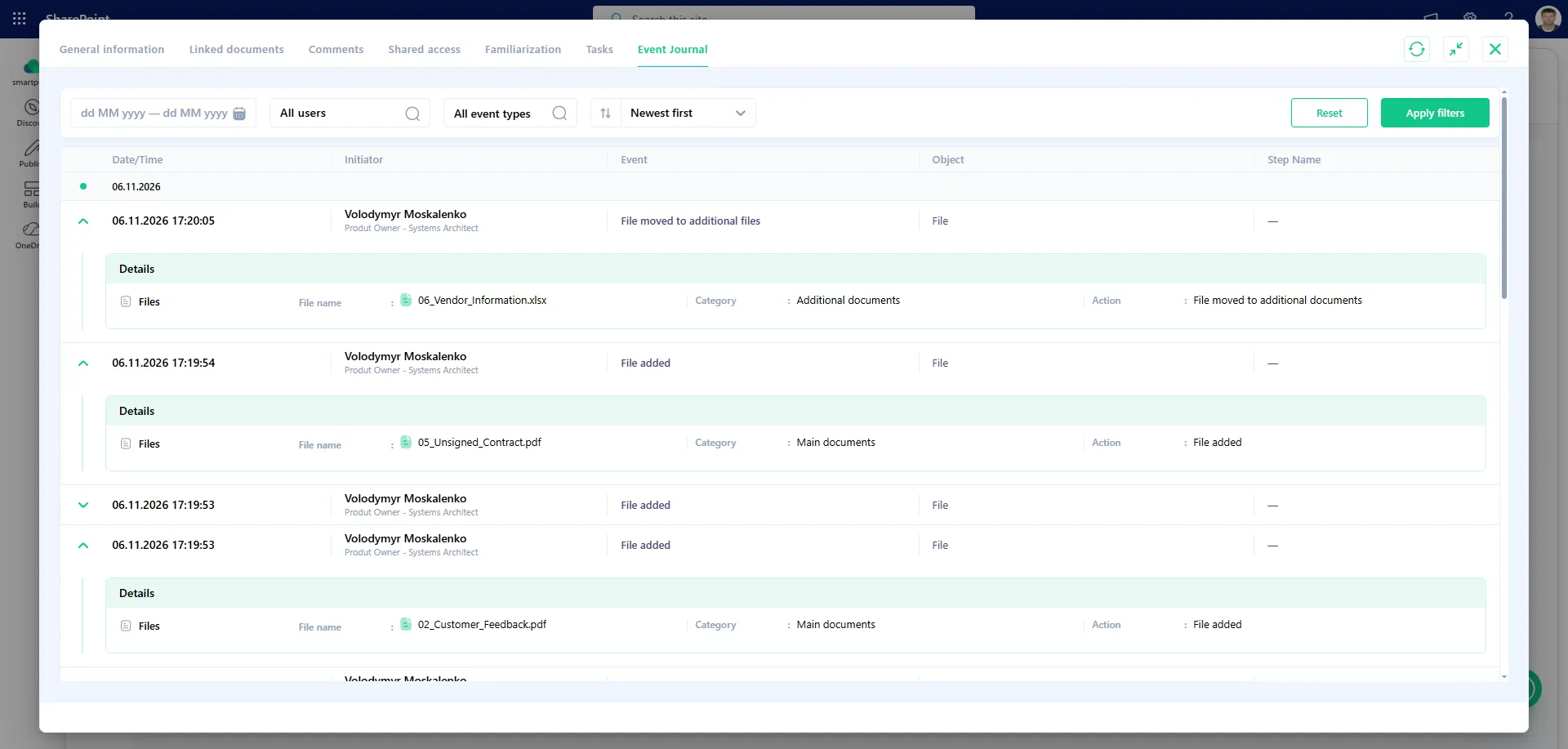
We’ve added a new Event log tab to the document card. It shows the history of key user actions on the document card, its fields, its files, and related documents.
How it works
Each log entry includes the date and time of the event, the initiator and their position, the event name, the object the action was performed on, and the process step at which it occurred.
You can filter events by period (including quick selections such as Today, Yesterday, and Last 7 days), by user, and by event type. You can also sort entries with the newest or the oldest first.
Benefits
The log makes work with a document transparent: you can quickly find out who made changes and when, who uploaded or deleted a file, or who linked the document to another document. This simplifies resolving disputes, internal control, and audit preparation.